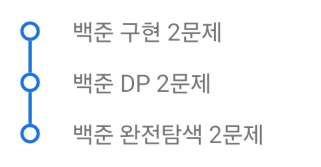
TODO 앱 개인 프로젝트를 리팩토링하면서 나의 일정 목록을 좀 더 직관적으로 보여주고 싶었다.
그래서 나만의 Bullet Point를 만들어 사용하기로 하였다.
Bullet Point는 Canvas의 Circle과 Line을 사용하여 구현하였는데, 고려해야 할 사항이 몇 가지 있었다.
- 리스트에서 사용하기에 RecyclerView의 Item에 선언된다.
- Item에 선언되기에 각 Item의 Position에 따라 모양이 달라진다. ex) 첫 번째 Item의 경우 원 위쪽 라인이 필요가 없다.
1. 인터페이스 생성
확장성을 고려하여 다양한 Bullet Point를 구현할 수 있도록 Circle과 Line에 대한 Interface 생성
interface Bullet {
    fun drawLineUp(canvas: Canvas)
    fun drawLineDown(canvas: Canvas)
    fun drawCircle(canvas: Canvas)
}
2. View Class 생성
open class BulletPoint(context: Context, attrs: AttributeSet) : View(context, attrs), Bullet {

    override fun onDraw(canvas: Canvas) {
        super.onDraw(canvas)
        // TODO
    }

    override fun drawLineUp(canvas: Canvas) {
        // TODO
    }

    override fun drawLineDown(canvas: Canvas) {
        // TODO
    }

    override fun drawCircle(canvas: Canvas) {
        // TODO
    }
}
3. Attrs 정의
res/values/attrs.xml
<?xml version="1.0" encoding="utf-8"?>
<resources>
    <declare-styleable name="BulletPoint">
        <attr name="color" format="color"/>
        <attr name="circleColor" format="color"/>
        <attr name="circleSize" format="dimension"/>
        <attr name="lineColor" format="color"/>
        <attr name="lineSize" format="dimension"/>
    </declare-styleable>
</resources>
Circle과 Line의 색과 크기를 설정
open class BulletPoint(context: Context, attrs: AttributeSet) : View(context, attrs), Bullet {
    private val lineSize: Int
    private val lineColor: Int
    protected val circleColor: Int
    protected val circleSize: Int
    protected var color: Int? = null

    init {
        val attr = context.theme.obtainStyledAttributes(attrs, R.styleable.BulletPoint, 0, 0)
        color = attr.getColor(R.styleable.BulletPoint_color, Color.BLUE)
        circleSize = attr.getDimensionPixelSize(R.styleable.BulletPoint_circleSize, 15)
        circleColor = attr.getColor(R.styleable.BulletPoint_circleColor, Color.BLUE)
        lineSize = attr.getDimensionPixelSize(R.styleable.BulletPoint_lineSize, 5)
        lineColor = attr.getDimensionPixelSize(R.styleable.BulletPoint_lineColor, Color.BLUE)
    }
    ...
}
4. Item Position Setting
Item 위치에 따라 그려야 할 선이 달라지기 때문에 Item Position을 지정해 줄 필요가 있다.
enum class Position {
    START, MID, END, ONE
}
따라서 enum class 를 통해 시작, 중간, 끝, 리스트가 하나인 경우를 정의하여 전달 받는 방법을 선택했다.
private var position: Position? = null

fun setPosition(position: Position) {
    this.position = position
    invalidate() // View 재구성
}
5. Draw
이제 기본 설정은 끝났고, 이를 통해 원과 선을 그려주면 끝이 난다.
onDraw()
position 설정 이후 invalidate() 를 통해 실행되는 onDraw에서는 Position에 따라 그려 줄 도형을 선택한다.
override fun onDraw(canvas: Canvas) {
    super.onDraw(canvas)
    when (position ?: return) {
        Position.START -> {
            drawCircle(canvas)
            drawLineDown(canvas)
        }

        Position.MID -> {
            drawLineUp(canvas)
            drawCircle(canvas)
            drawLineDown(canvas)
        }

        Position.END -> {
            drawLineUp(canvas)
            drawCircle(canvas)
        }

        Position.ONE -> {
            drawCircle(canvas)
        }
    }
}
drawCircle()
private var background = context.resources.configuration.uiMode.and(Configuration.UI_MODE_NIGHT_MASK)

override fun drawCircle(canvas: Canvas) {
    paint.color = color ?: circleColor
    canvas.drawCircle(width / 2F, height / 2F, circleSize.toFloat(), paint)

    settingBackgroundCircle(canvas)
}

protected fun settingBackgroundCircle(canvas: Canvas){
    paint.color = when(background){
        Configuration.UI_MODE_NIGHT_YES -> {
            Color.BLACK
        }
        else -> {
            Color.WHITE
        }
    }

    canvas.drawCircle(width / 2F, height / 2F, circleSize.toFloat()-5, paint)
}
settingBackgroundCircle()의 경우 canvas.drawCircle()은 꽉 찬 원을 그려주기 때문에 내부에 배경색과 같은 작은 원을 그려 속이 빈 원을 그려주기 위함이다.
drawLine()
override fun drawLineUp(canvas: Canvas) {
    settingDrawLine()

    val x = width / 2F
    val y1 = height / 2F - circleSize
    val y2 = 0F

    canvas.drawLine(x, y1, x, y2, paint)
}

override fun drawLineDown(canvas: Canvas) {
    settingDrawLine()

    val x = width / 2F
    val y1 = height / 2F + circleSize
    val y2 = height.toFloat()

    canvas.drawLine(x, y1, x, y2, paint)
}

protected fun settingDrawLine(color: Int = this.color ?: lineColor){
    paint.color = color
    paint.strokeWidth = lineSize.toFloat()
}
원의 끝 부분부터 View의 마지막까지 좌표를 설정하여 선을 그려주는 작업
'안드로이드 > View' 카테고리의 다른 글
| [EditText] 날짜 입력하기 with Flow (0) | 2025.08.03 |
|---|---|
| [View] Progress Bullet Point (0) | 2025.07.29 |
| SearchView (0) | 2024.07.14 |
| TimePicker (0) | 2024.07.14 |
| [Layout] CoordinatorLayout (0) | 2024.07.13 |


